Integrating multimedia into your Joomla site should enhance engagement, not create headaches. Many administrators face broken uploads, slow page loads, and frustrated users when multimedia integration goes wrong. Research shows successful multimedia integration projects report a 30% increase in session duration and 20% higher interaction within three months. This guide walks you through prerequisites, native tools, extension selection, optimization, and troubleshooting to achieve stable, high-performing multimedia on your Joomla site.
Table of Contents
- Prerequisites: Technical Requirements And Setup
- Using Joomla’s Built-In Media Manager
- Selecting And Configuring Multimedia Extensions
- Step-By-Step Multimedia Integration Process
- Optimizing Performance For Multimedia
- Common Mistakes And Troubleshooting
- Measuring Success And Expected Outcomes
- Enhance Your Joomla Site With AllForJoomla Multimedia Solutions
- Frequently Asked Questions About Joomla Multimedia Integration
Key Takeaways
| Point | Details |
|---|---|
| Technical prerequisites | Joomla 6.x requires PHP 8.3 and MySQL 8.0.13 for stable multimedia operation. |
| Built-in tools | Joomla’s Media Manager organizes uploads through logical folder hierarchies, improving retrieval speed by 40%. |
| Extension selection | Choose actively maintained, Joomla 6.x compatible extensions to prevent conflicts and ensure ongoing support. |
| Performance optimization | Image compression and lazy loading improve page load speed by up to 50%, boosting SEO and user experience. |
| Common mistakes | Incorrect file permissions cause over 25% of multimedia display errors; verify compatibility to avoid 30% integration failures. |
Prerequisites: Technical Requirements and Setup
Before uploading your first image or video, verify your Joomla environment meets essential requirements. Joomla 6.x and 5.x require at least PHP 8.3 with MySQL 8.0.13 for stable multimedia extension operation. Outdated PHP versions cause compatibility errors that break media uploads mid-process.
Check your server configuration supports the multimedia file types you plan to use. Most shared hosting providers support common formats like JPEG, PNG, MP4, and WebM, but verify maximum upload sizes match your needs. If you plan to host large video files, confirm your hosting plan allows sufficient storage and bandwidth.
Set up proper administrative access before integration begins. You need Super User or Administrator privileges to install extensions, configure media settings, and adjust file permissions. Verify these permissions in your Joomla backend under Users > Manage.
Essential technical checklist:
- Confirm PHP 8.3+ and MySQL 8.0.13+ on your server
- Verify your hosting plan supports required file types and sizes
- Ensure Super User access for extension installation
- Check server upload limits match your largest media files
- Review Joomla official technical requirements for complete specifications
Pro Tip: Test your server configuration using a small test file upload before committing to large-scale multimedia integration. This catches permission errors and upload limit issues early.
Using Joomla’s Built-In Media Manager
Joomla’s built-in Media Manager allows organized file management through folder structures and supports image, video, audio, and document uploads directly in the admin panel. Navigate to Content > Media in your Joomla backend to access this powerful tool. The interface displays your media library with thumbnail previews, making visual content easy to locate.
Organize multimedia with a logical folder hierarchy that matches your site structure. Following a consistent folder hierarchy by year/month or by content type improves media retrieval speed and reduces time spent managing files by up to 40%. Create folders like “2026/January” or “Products/Electronics” depending on your content strategy.
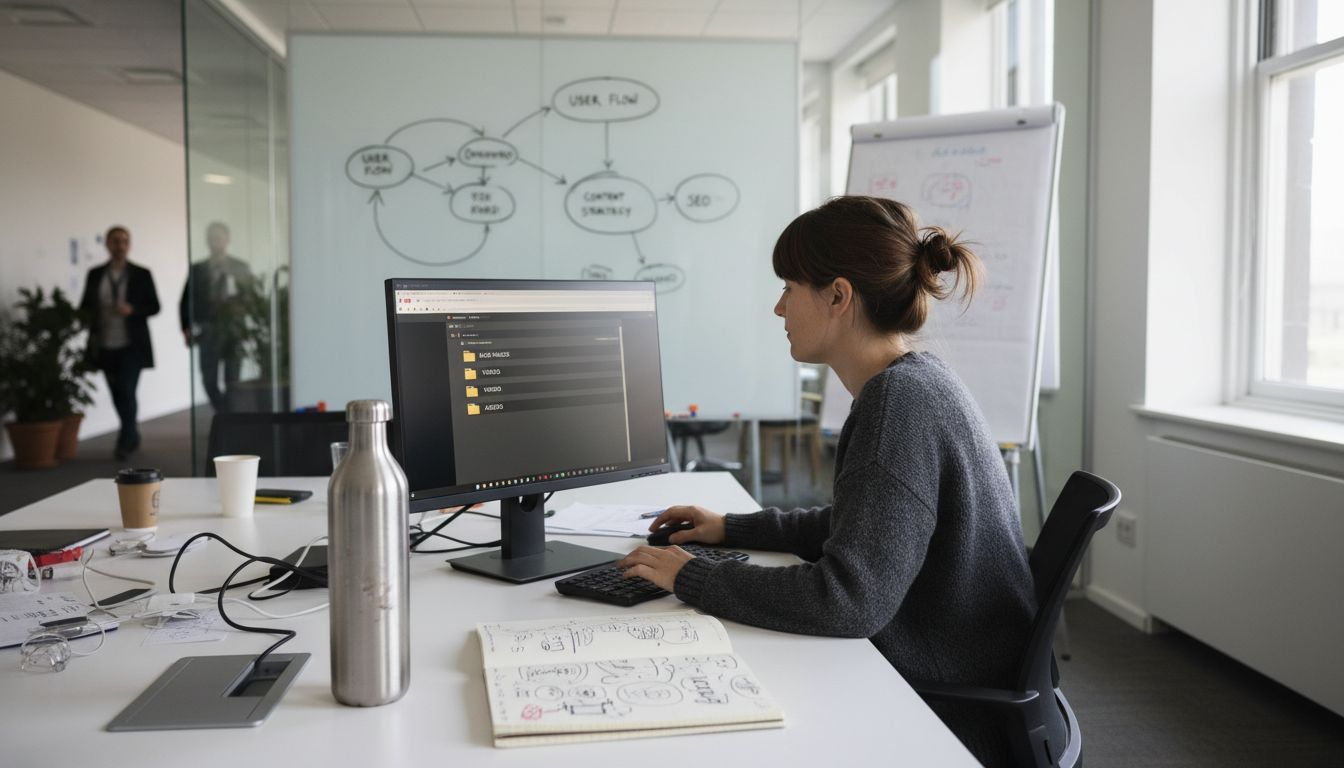
The Media Manager handles essential file operations without requiring FTP access. You can move files between folders, rename them for better SEO, delete outdated content, and preview media before inserting it into articles. This centralized approach prevents the scattered file mess that plagues poorly managed Joomla sites.
Key Media Manager features:
- Drag and drop upload interface for quick file additions
- Thumbnail previews for visual content identification
- Folder creation and hierarchical organization tools
- File operations including move, rename, and delete
- Direct insertion into articles and modules
Pro Tip: Establish naming conventions before uploading files. Use descriptive names like “product-smartphone-front.jpg” instead of “IMG_1234.jpg” to improve searchability and SEO value. Learn more about effective practices for how to manage media files in Joomla.
Selecting and Configuring Multimedia Extensions
While Joomla’s native tools handle basic needs, multimedia extensions add advanced features like galleries, video players, and social media embeds. Choosing multimedia extensions that support Joomla 6.x compatibility and have active maintenance enhances reliability and reduces technical conflicts during updates. Check the extension’s last update date and user reviews before installation.
Prioritize actively maintained extensions with regular updates. Abandoned extensions create security vulnerabilities and compatibility issues when you update Joomla core. Look for extensions updated within the past six months and backed by responsive developer support.
Basic configuration steps apply across most multimedia extensions. After installation, set user permissions to control who can upload and manage media. Clear your Joomla cache to ensure new extension features load properly. Test functionality in a staging environment before deploying to your live site.
| Feature | Built-In Media Manager | Third-Party Extensions |
|---|---|---|
| Basic uploads | Yes | Yes |
| Advanced galleries | No | Yes |
| Video players | Limited | Yes |
| Social media embeds | No | Yes |
| Responsive design | Basic | Advanced |
| Customization | Limited | Extensive |
Configuration best practices:
- Review extension documentation before installation
- Set appropriate user group permissions
- Test in staging before live deployment
- Clear cache after configuration changes
- Monitor extension updates regularly
Pro Tip: Explore premium Joomla multimedia extensions that offer professional support and guaranteed Joomla 6.x compatibility. Quality extensions save troubleshooting time and provide features that justify their cost. Review Joomla extension compatibility guidelines for selection criteria.
Step-by-Step Multimedia Integration Process
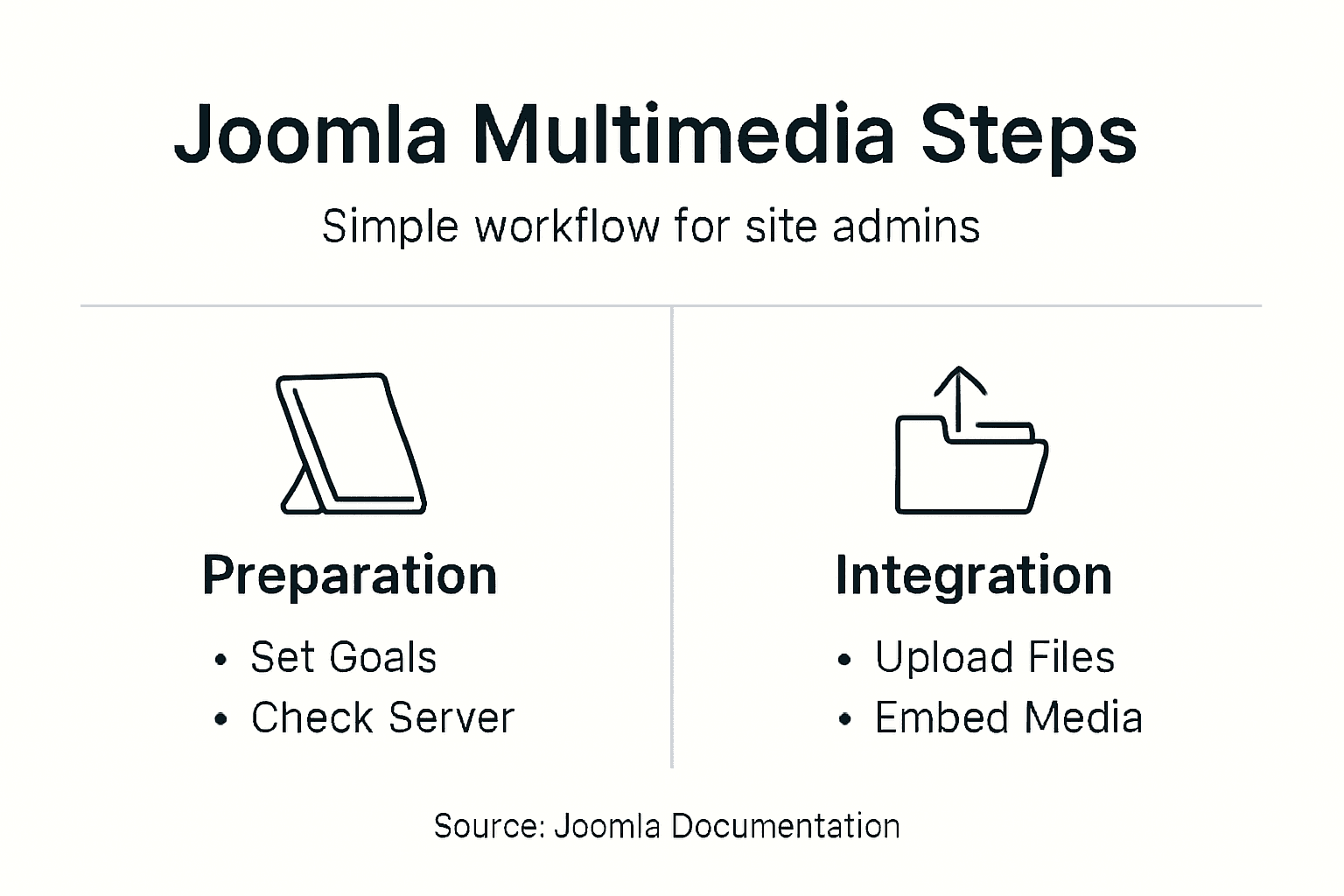
Successful multimedia integration follows a structured sequence from planning through deployment. Define multimedia goals first. Are you adding product galleries, tutorial videos, or customer testimonials? Your goals determine which media types and extensions you need.
Organize your media library before uploading content. Create folder structures that support your goals and maintain consistency as your library grows. This preparation prevents the chaotic reorganization that wastes hours later.
Complete integration workflow:
- Define multimedia goals and select appropriate media types
- Create logical folder hierarchies in Media Manager
- Install and configure chosen multimedia extensions
- Upload and organize media files systematically
- Embed multimedia in articles, modules, or templates
- Test functionality across desktop, tablet, and mobile devices
- Optimize performance using caching and compression
- Monitor user engagement metrics
A typical timeline for multimedia integration ranges from 3 to 7 days depending on site size and media volume, including setup, testing, and optimization phases. Rush jobs skip crucial testing steps and create problems you will fix later.
Embedding multimedia varies by content type. For articles, use the Media Manager insert button while editing. For module-based displays, configure your extension settings to pull from specific folders. Template integration requires editing PHP files or using module positions.
Content discoverability matters for SEO. Structure your multimedia content using descriptive filenames and alt text. Implement HTML sitemap resources and HTML sitemap pages to help search engines index your multimedia content effectively. Review Joomla multimedia integration timeline expectations for realistic planning.
Optimizing Performance for Multimedia
Unoptimized multimedia destroys page load speed and frustrates users. Image optimization improves page load speed by up to 50%, thereby enhancing user engagement and SEO for Joomla multimedia elements. Compress images before uploading using formats like WebP or AVIF, which provide superior compression compared to traditional JPEG or PNG.
Avoid uploading overly large media files; standards recommend images below 500KB for fast Joomla page loads and multimedia responsiveness. Videos should use adaptive streaming or cloud hosting services rather than direct uploads to your Joomla server. Large files consume bandwidth and slow server response times.
Enable Joomla caching specifically for media files. Navigate to System > Global Configuration > System and set cache settings to “ON - Conservative caching.” This stores processed media versions and reduces server load on repeat visits.
Implement lazy loading for images and videos to improve perceived page speed. Lazy loading defers offscreen media until users scroll to that content, reducing initial page weight. Many multimedia extensions include lazy loading features, or you can add it through dedicated plugins.
Performance optimization checklist:
- Compress images to WebP or AVIF formats
- Keep individual image files below 500KB
- Host large videos on external platforms like YouTube or Vimeo
- Enable Joomla system cache for media content
- Implement lazy loading for below-the-fold multimedia
- Use responsive images with srcset attributes
- Minify CSS and JavaScript for media galleries
Explore detailed techniques for image optimization in Joomla to maximize performance gains.
Common Mistakes and Troubleshooting
Even experienced Joomla administrators encounter multimedia integration issues. Verify extension compatibility to avoid the 30% of integration failures caused by incompatible software. Always check that extensions explicitly support your Joomla version before installation.
Incorrect file permissions frequently cause multimedia upload and display errors, reported in over 25% of integration troubleshooting cases. Set directory permissions to 755 and file permissions to 644 for proper operation. Use your hosting control panel or FTP client to adjust permissions on the images folder and subdirectories.
Use consistent media naming conventions to prevent conflicts. Avoid special characters, spaces, or uppercase letters in filenames. Stick with lowercase letters, numbers, and hyphens for maximum compatibility across servers and browsers.
Resolve extension conflicts by systematically disabling extensions to identify the culprit. If multimedia suddenly stops working after an update, disable recently installed or updated extensions one at a time, testing after each change. This isolation method pinpoints the problematic extension.
Common errors and solutions:
- Upload fails: Check PHP upload_max_filesize and post_max_size settings
- Images not displaying: Verify file permissions are 644 for files, 755 for directories
- Extension conflicts: Disable recently added extensions to isolate issues
- Slow page loads: Compress images and enable lazy loading
- Broken thumbnails: Regenerate thumbnails using Media Manager tools
Learn to fix Joomla file permission errors with detailed troubleshooting steps.
Measuring Success and Expected Outcomes
Track specific metrics to evaluate multimedia integration success. Key metrics include session duration and user interaction rates, which directly reflect engagement improvements. Use Google Analytics or Joomla analytics extensions to monitor these metrics before and after integration.
Successful multimedia integration projects report a 30% increase in average session duration and 20% higher user interaction rates within 3 months post-deployment. Observe improvements typically within this three-month timeframe as search engines index your enhanced content and users discover multimedia features.
Performance gains include up to 50% faster page loads with optimized media. Monitor page speed using Google PageSpeed Insights or GTmetrix, comparing scores before and after optimization. Faster loads reduce bounce rates and improve search rankings.
Decreased support issues signal stable multimedia integration. If you initially handle multiple user complaints about broken images or slow galleries, declining support tickets indicate your integration has matured successfully.
| Metric | Before Integration | After 3 Months | Improvement |
|---|---|---|---|
| Average Session Duration | 2.5 minutes | 3.25 minutes | +30% |
| User Interaction Rate | 45% | 54% | +20% |
| Page Load Speed | 4.2 seconds | 2.1 seconds | +50% |
| Support Tickets | 15/month | 6/month | -60% |
Review comprehensive data on measuring Joomla multimedia success to benchmark your results against industry standards.
Enhance Your Joomla Site with AllForJoomla Multimedia Solutions
You have learned the technical foundations and best practices for Joomla multimedia integration. Now enhance your site with professionally developed tools designed specifically for Joomla 6.x compatibility and performance.
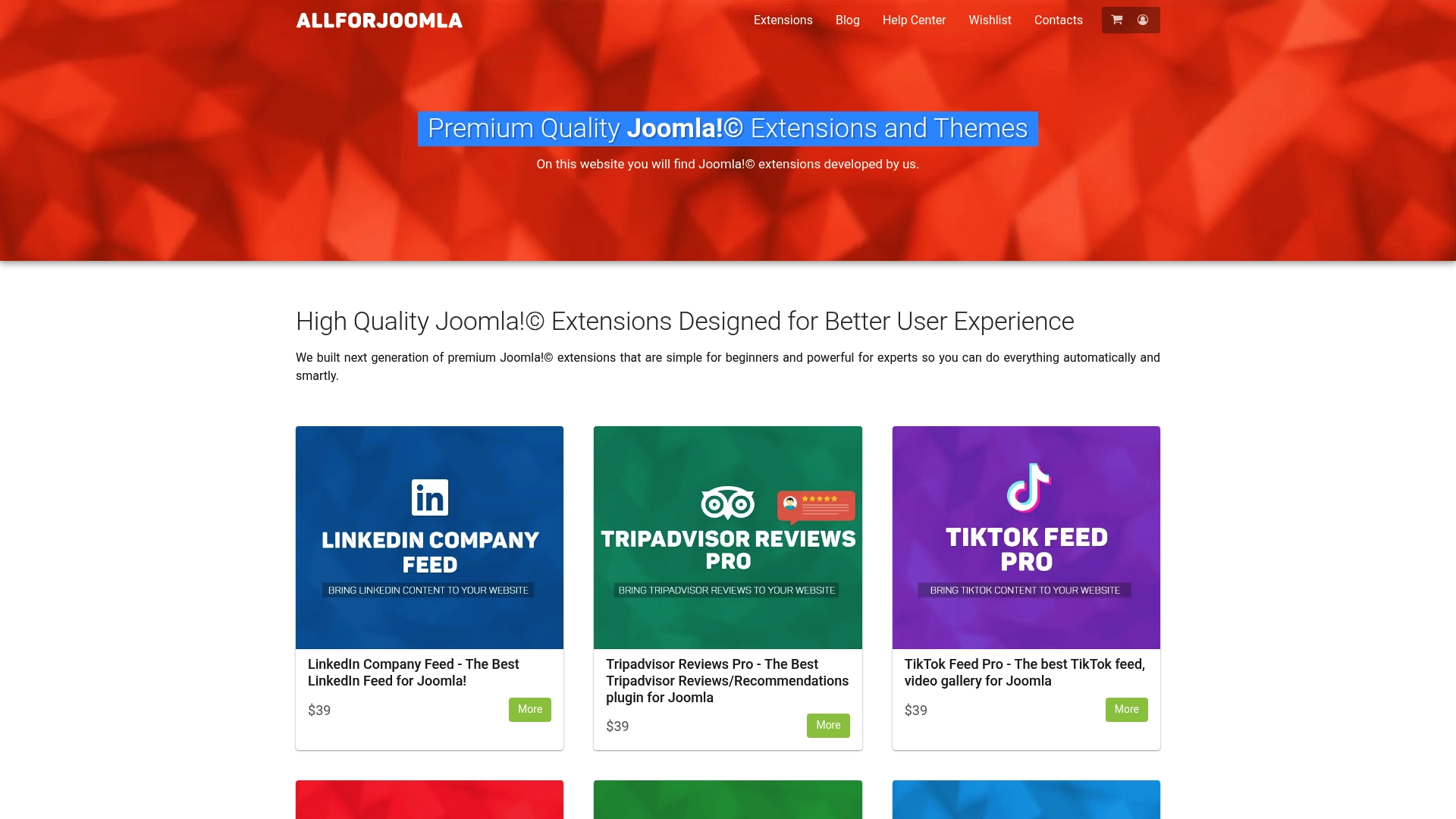
Discover carefully vetted AllForJoomla multimedia extensions that streamline integration and eliminate common technical headaches. Each extension receives regular updates, dedicated support, and thorough compatibility testing. Whether you need advanced galleries, social media feeds, or responsive video players, our premium modules deliver professional results without the trial-and-error of free alternatives. Benefit from expert support when you need guidance and active maintenance that keeps your multimedia features working smoothly through Joomla updates. Enhance your site’s engagement and performance with tools built by developers who understand Joomla inside and out.
Frequently Asked Questions About Joomla Multimedia Integration
How do I check if a multimedia extension is compatible with my Joomla version?
Check the extension’s product page or Joomla Extensions Directory listing for explicit version compatibility statements. Look for “Joomla 6.x compatible” or similar language, and verify the last update date is recent.
What are the recommended file permission settings for multimedia folders?
Set directory permissions to 755 and individual file permissions to 644. These settings allow Joomla to read and write files while maintaining security standards that prevent unauthorized access.
Can I use Joomla’s Media Manager for large video files?
Joomla’s Media Manager handles video uploads, but hosting large videos directly consumes server resources and bandwidth. Use external platforms like YouTube, Vimeo, or dedicated video hosting services for files over 50MB, then embed them in Joomla.
How soon will I see engagement improvements after multimedia integration?
Most sites observe measurable engagement improvements within three months post-deployment. Session duration and interaction rates typically increase as search engines index your enhanced content and users discover multimedia features.
What should I do if multimedia content does not display after upload?
Verify file permissions are correct (644 for files, 755 for directories) and check that your file format is supported. Clear Joomla cache, disable recently installed extensions to rule out conflicts, and confirm the file path is correct in your article or module settings.