Managing content in Joomla can feel overwhelming when you’re juggling multiple articles, categories, and menu items. Many administrators waste hours navigating backend interfaces, manually updating content one piece at a time, and struggling to locate specific articles buried in their content library. This inefficiency drains productivity and delays website improvements. The good news is that Joomla offers powerful native tools and premium extensions that can transform your workflow. By mastering frontend editing, bulk management techniques, and smart database organization, you can cut content creation time dramatically while maintaining quality and precision across your entire site.
Table of Contents
- Preparing Your Joomla Environment For Efficient Content Creation
- Executing Content Creation Effectively With Joomla Tools And Extensions
- Verifying And Optimizing Your Content Creation Process In Joomla
- Enhance Your Joomla Content Creation With Premium Extensions
- FAQ
Key takeaways
| Point | Details |
|---|---|
| Database understanding | Knowing how Joomla stores content in its database enables more strategic content organization and troubleshooting. |
| Frontend editing advantage | Editing content directly on your live site eliminates cache clearing delays and speeds up corrections. |
| Bulk management power | Extensions like OSContent allow simultaneous creation or deletion of multiple articles, categories, and menu links. |
| Module position visualization | Using the tp=1 URL parameter reveals exactly where modules appear on your site for precise layout control. |
| Search syntax efficiency | The content: keyword search in Article Manager finds text within article bodies instantly. |
Preparing your Joomla environment for efficient content creation
Before diving into content creation, you need to understand how Joomla organizes and stores your website data. The Joomla database stores all settings, content, and menu relationships made in the backend, forming the foundation of your entire site structure. The COM_CONTENT component manages articles, while related tables handle categories, tags, and asset permissions. This architecture means every article you create connects to multiple database entries that define its visibility, access level, and placement.
Grasping this structure helps you make smarter decisions about category hierarchies and content organization. When you create a new category, Joomla automatically generates corresponding database entries that link to parent categories and define inheritance rules for permissions. Poor category planning early on creates messy content trees that become nightmares to reorganize later. Spend time mapping out your category structure before adding articles, considering how content will scale as your site grows.
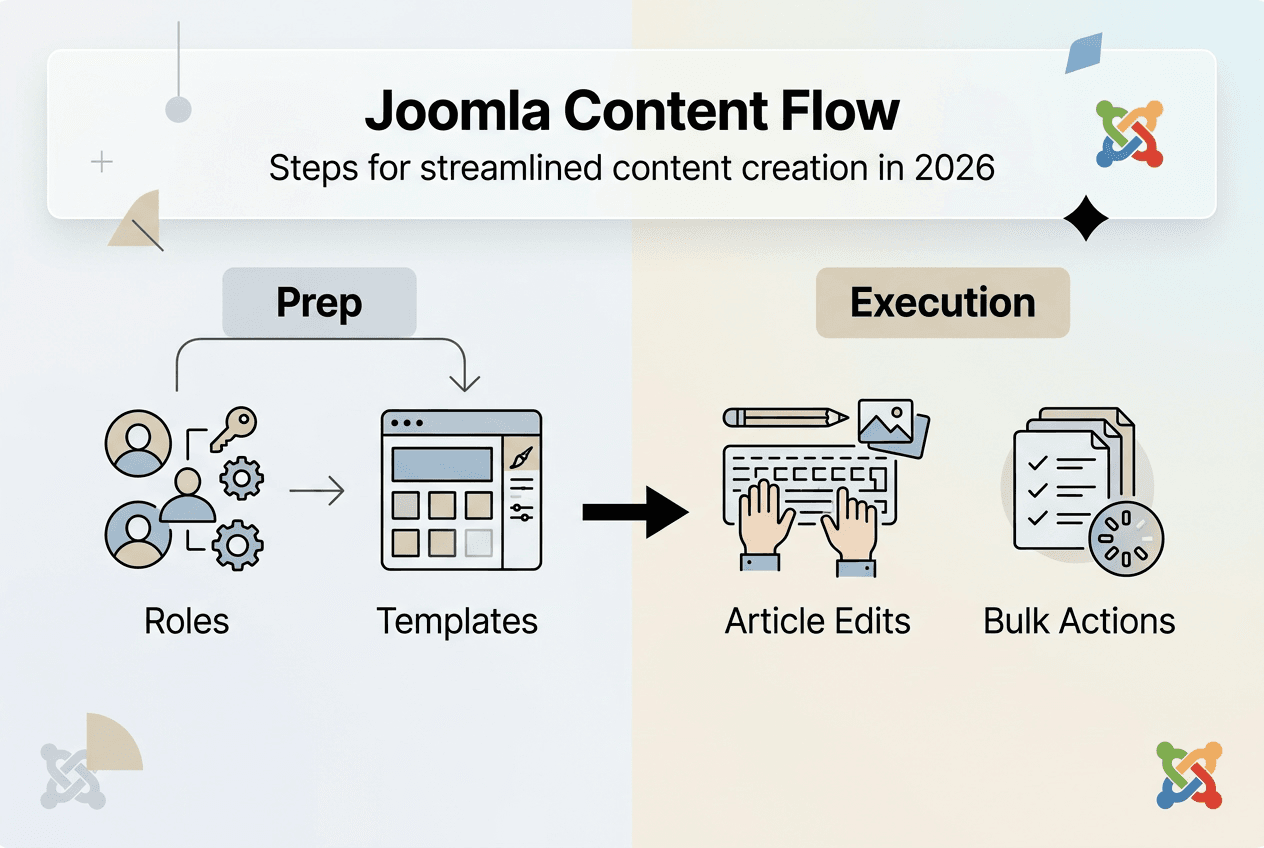
User permissions play a crucial role in workflow efficiency. Configure author, editor, and publisher roles carefully to match your team structure. Authors should create content, editors refine it, and publishers control what goes live. Setting these permissions correctly at the global and category levels prevents bottlenecks where one person becomes the approval gatekeeper for all content changes. Review permission settings quarterly as your team evolves.
Your template and module configuration directly impacts how quickly you can visualize content changes. Install premium Joomla modules that enhance your content display options and give you granular control over layout. Position your modules strategically across template positions, keeping frequently updated content in easily accessible spots. Document which module positions correspond to which page sections so your entire team can make changes confidently.
Pro Tip: Create a spreadsheet mapping your category structure, menu item IDs, and module positions before launching major content initiatives. This reference document saves countless hours when troubleshooting display issues or onboarding new team members who need to understand your site architecture quickly.
Executing content creation effectively with Joomla tools and extensions
Joomla’s Article Manager provides robust search capabilities that most administrators underutilize. The content: keyword syntax lets you search within article text bodies rather than just titles, making it easy to locate specific information buried in hundreds of articles. Type content: followed by your search term in the filter box to instantly find every article containing that phrase. This feature becomes invaluable when updating outdated information across multiple articles or verifying consistency in product descriptions.

Frontend editing in Joomla allows direct content modification of articles and modules while viewing your live site. Enable this feature in your user permissions, then look for the edit icons that appear when logged in as an authorized user. Click any icon to open an inline editor that lets you change text, images, or formatting without switching to the backend. Changes save immediately without requiring cache clearing, which eliminates the frustrating cycle of edit, save, clear cache, refresh, repeat.
For bulk operations, OSContent creates and deletes articles and categories in bulk within Joomla, transforming tasks that would take hours into minutes. Install this extension when you need to populate a new site section with template articles, remove outdated seasonal content, or restructure category hierarchies. The interface lets you specify how many items to create, what naming pattern to use, and which category to place them in. You can generate 50 placeholder articles in seconds, then populate them with actual content as it becomes available.
| Feature | Native Joomla | OSContent Extension | | — | — | | Single article creation | Full editor with all options | Not designed for individual articles | | Bulk article creation | Must create one at a time manually | Creates dozens simultaneously with templates | | Category management | Individual category creation only | Bulk category creation and deletion | | Menu link generation | Manual linking required | Automatic menu item creation for new content | | Learning curve | Familiar to all Joomla users | Requires initial setup and understanding |
Follow these steps to maximize your content creation workflow:
- Plan your content structure in a spreadsheet before touching Joomla, mapping categories, tags, and article relationships.
- Create category hierarchy first using either native tools for small structures or OSContent for complex taxonomies.
- Enable frontend editing for your user role and bookmark frequently edited pages for instant access.
- Use Article Manager search with content: syntax to verify no duplicate content exists before creating new articles.
- Leverage OSContent for initial bulk article creation when launching new site sections, then refine individual articles using frontend editing.
- Set up content templates in Article Manager for recurring content types like product descriptions or team bios.
Pro Tip: Install premium Joomla extensions that add custom fields to your articles, enabling you to capture structured data like product specifications or event details without cluttering your article body text. This separation makes content updates cleaner and enables better filtering and sorting capabilities.
Verifying and optimizing your content creation process in Joomla
After creating or editing content, verification ensures everything displays correctly across your site. Caching can mask recent changes, making you think edits failed when they actually saved successfully. Frontend editing bypasses this issue entirely since changes appear immediately, but backend edits may require cache clearing depending on your cache configuration. Check both your Joomla cache and any third party caching plugins or server level caching to ensure fresh content displays.
Module positions can be visualized by adding tp=1 to the URL, revealing exactly where each template position appears on your page. Navigate to any page and append ?tp=1 to see outlined boxes with position names overlaid on your layout. This visualization eliminates guessing when assigning modules to positions, showing you precisely where content will appear before you publish it. The feature works on all pages, helping you verify that responsive breakpoints display modules correctly across device sizes.
For advanced customization, custom module IDs are displayed in the HTML code when you inspect elements using browser developer tools. Right click any module on your site and select Inspect Element to view the underlying HTML. Look for class names or ID attributes that reference your module, typically formatted as mod-custom-123 or similar patterns. These identifiers let you write targeted CSS or JavaScript that affects only specific modules without touching others in the same position.
| Common Issue | Symptom | Solution | | — | — | | Content not displaying | Article exists but doesn’t appear on site | Check article status is Published and verify menu item links to correct category | | Module in wrong position | Module appears in unexpected page location | Use tp=1 parameter to visualize positions and reassign module | | Formatting breaks on mobile | Content looks fine on desktop but broken on phones | Inspect responsive CSS and verify module has appropriate class suffixes for mobile | | Search not finding articles | Known content doesn’t appear in search results | Rebuild search index in Smart Search component settings | | Permission errors | Users cannot edit content they should access | Review permission inheritance from global to category to article levels |
Best practices for ongoing content management include:
- Schedule monthly audits of unpublished articles to identify abandoned drafts consuming database space.
- Tag articles consistently using a controlled vocabulary documented in your style guide.
- Archive outdated content rather than deleting it, preserving historical information and avoiding broken links.
- Use article versioning to track major content changes and enable rollback if needed.
- Monitor article hit counts to identify popular content worth expanding and stale content needing updates.
- Document your workflow processes so new team members can contribute effectively without extensive training.
- Test content changes in a staging environment before applying them to production sites.
- Back up your database before bulk operations using OSContent or similar tools.
Consider implementing a content calendar that maps planned articles to categories and publication dates. This forward planning prevents last minute scrambles and ensures consistent publishing cadence. Many successful Joomla sites batch create article shells using OSContent, then assign them to writers with clear deadlines. Writers use frontend editing to populate assigned articles, and editors review directly on the site before changing status to published.
Regularly review your Joomla module customization options to ensure your layout stays fresh and functional. Modules control much of your site’s dynamic content, from navigation menus to promotional banners. Outdated module configurations can slow page loads or create visual inconsistencies as your content library grows. Audit which modules load on which pages quarterly, disabling unused modules to improve performance.
Enhance your Joomla content creation with premium extensions
While Joomla’s native tools provide solid content management capabilities, premium extensions from trusted sources elevate your workflow to professional levels. These specialized tools integrate seamlessly with your existing Joomla installation, adding features that would take months to develop custom. Premium Joomla modules offer advanced functionality for social media integration, review collection, and multimedia galleries that transform static content into engaging interactive experiences.
AllForJoomla specializes in high quality extensions designed specifically for content creators and digital marketers who demand reliability and ease of use. Their Joomla components and plugins handle everything from automated social feeds to customer review displays, letting you focus on content strategy rather than technical implementation. These tools complement the content creation techniques covered in this guide, providing the polish and functionality that distinguishes professional sites from amateur efforts. Explore their catalog to find extensions that match your specific content needs and workflow requirements.
FAQ
How can I quickly find specific content inside Joomla articles?
Joomla’s Article Manager supports the content: keyword syntax for searching within article bodies, not just titles or metadata. Type content: followed by your search term in the filter field to instantly locate every article containing that phrase. For comprehensive results across your entire site including modules and components, perform a Google site search using site:yourdomain.com followed by your keywords. This combination ensures you never lose track of content regardless of where it lives in your Joomla installation.
What are the benefits of frontend editing in Joomla?
Frontend editing simplifies content corrections by allowing direct modification without clearing the cache or navigating backend menus. You see exactly how changes appear to visitors in real time, eliminating the guesswork of backend editing. This approach dramatically reduces the time spent on minor content updates like fixing typos or updating phone numbers. Enable it for trusted users who need quick content access without full administrator privileges, creating a more efficient collaborative workflow.
How can I manage large amounts of Joomla content efficiently?
OSContent creates and deletes articles and categories in bulk, transforming tasks that would require hundreds of individual operations into single batch processes. Install this extension when launching new site sections, migrating content structures, or performing seasonal content updates. The time savings become substantial when managing sites with hundreds or thousands of articles. Combine bulk creation with frontend editing for a workflow where you generate article shells quickly, then populate them with content efficiently without constant backend switching.
How do I visualize where modules will appear on my Joomla site?
Add the parameter ?tp=1 to any page URL to activate Joomla’s template position visualization feature. This displays outlined boxes with position names overlaid directly on your page layout, showing exactly where each template position renders. The visualization works across all device sizes when you resize your browser window, helping you verify responsive behavior. Use this tool before assigning modules to positions, ensuring content appears exactly where you intend without trial and error publishing.
What should I know about Joomla’s database structure for content management?
Joomla stores all content, settings, and relationships in a MySQL or PostgreSQL database with interconnected tables. The COM_CONTENT component manages articles through several tables that handle content text, category assignments, tags, and permissions. Understanding this structure helps you troubleshoot display issues, plan category hierarchies strategically, and make informed decisions about content organization. When bulk operations or migrations are needed, database knowledge enables you to work directly with data rather than clicking through hundreds of backend forms.
How can I improve my content workflow with team collaboration?
Configure Joomla’s user groups and permission levels to match your team structure, assigning appropriate access to authors, editors, and publishers. Enable frontend editing for content creators who need quick access without full backend privileges. Implement a content calendar using spreadsheets or project management tools to coordinate article assignments and deadlines. Use article versioning to track changes and enable rollback if collaborative edits go wrong. Document your category structure, module positions, and workflow processes so new team members can contribute effectively from day one.