A video gallery can make a Joomla site more persuasive in seconds - until a visitor cannot start a video with a keyboard, understand the audio, or tell which thumbnail they selected. To create accessible Joomla video galleries, treat accessibility as part of the gallery design from the first video upload, not as a final compliance task.
For a business website, that approach produces a better result for everyone. Clear controls help mobile visitors. Captions help people watching without sound. Well-labeled playlists help customers find the product demo, testimonial, tutorial, or event recording they came to see. Accessibility is good user experience, and good user experience keeps people engaged.
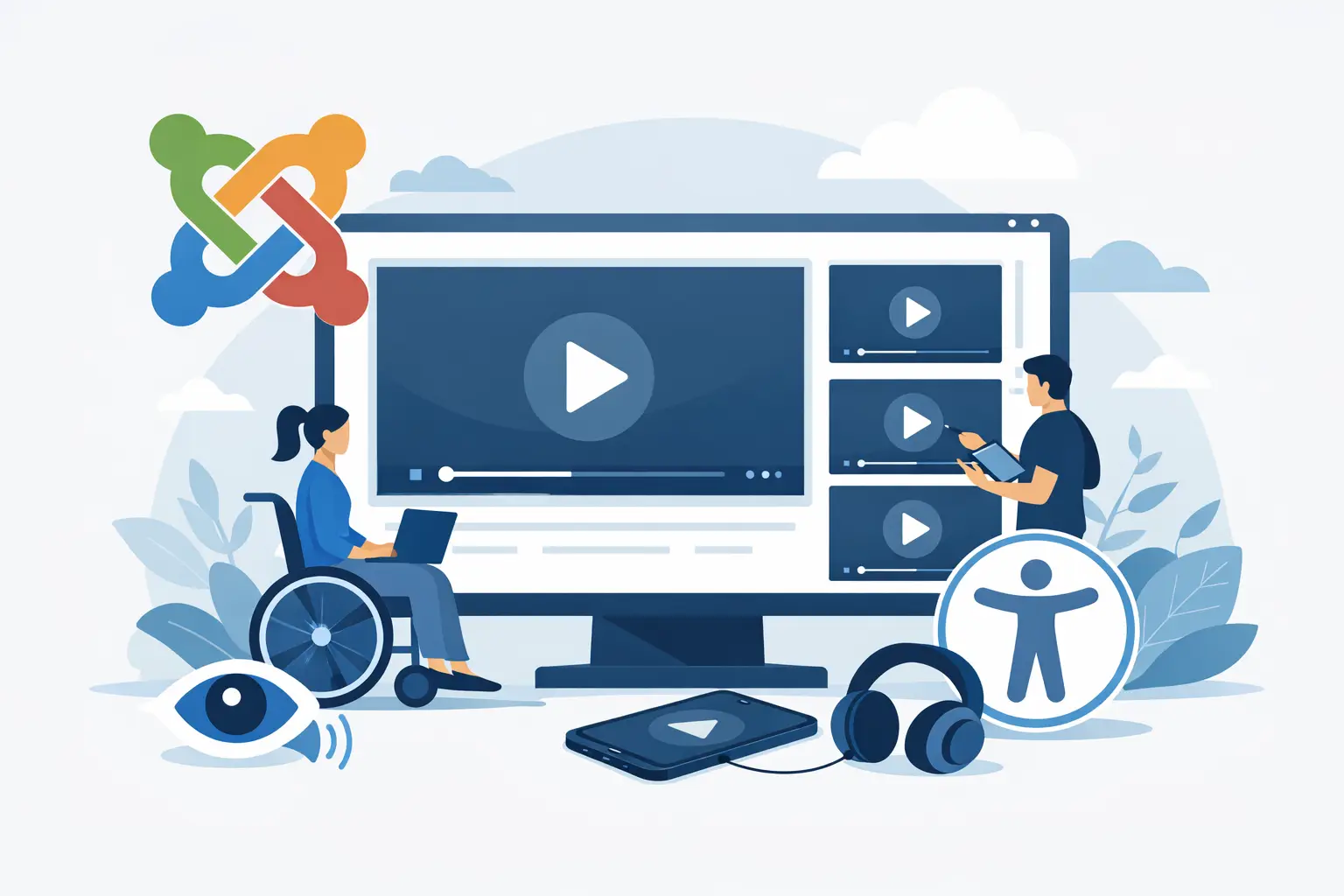
Start With an Accessible Video Player
The player is the foundation of the gallery. Before selecting gallery layouts, confirm that the embedded video player supports keyboard operation. A visitor should be able to reach the play button, pause control, volume control, captions, fullscreen option, and settings menu using the Tab key. The focused control must also be visibly highlighted.
Avoid players that rely on hover effects alone or replace familiar playback controls with unlabeled icons. A triangle may look like a play button to a sighted user, but assistive technology needs an accessible name such as “Play video: Spring product overview.”
Native controls are often the safest starting point, especially for simple embedded videos. If you use a custom player or a Joomla extension that modifies the player interface, test every control before publishing. A polished design is valuable, but it cannot come at the cost of basic operation.
Captions, Transcripts, and Audio Context
Captions are essential when spoken dialogue, product details, or instructions carry the message. They should be accurate, synchronized, and available from the player controls. Auto-generated captions can reduce setup time, but they need review. Product names, technical terms, and customer testimonials are frequently transcribed incorrectly.
A transcript adds another useful layer. Place it directly below the video or make it available with a clearly labeled button. Transcripts are particularly helpful for long tutorials, webinars, interviews, and training content because visitors can scan the information, search for a topic, and return to a specific point in the video.
If a video includes meaningful visual information that is not explained in the audio, provide that context as well. For example, a silent screen recording that shows how to configure a Joomla setting should include narration or a written set of steps. Captions alone cannot describe what happens on screen.
Create Accessible Joomla Video Galleries With Clear Structure
A gallery is more than a collection of embeds. It needs a structure that tells visitors what the collection contains and how each video relates to the next. Start with a descriptive gallery heading, then organize videos by a useful category such as product demos, customer stories, help videos, or recent events.
Each thumbnail needs a meaningful title. “Video 1” and “Watch now” create unnecessary friction, while “How to add Google Reviews to a Joomla page” tells users exactly what they will get. Include the video duration when possible. This helps visitors decide whether they have time for a two-minute overview or a 40-minute webinar.
Do not use thumbnail images as the only source of information. A screenshot of a presenter or a product dashboard may look good, but it does not explain the subject to screen-reader users or to anyone who cannot interpret the image. Pair the image with visible text and concise alternative text that supports the title rather than repeating it.
For example, a thumbnail can have the visible title “Restaurant owner testimonial” and alternative text such as “Restaurant owner speaking in a dining room.” The title communicates the video topic. The alternative text describes the image.
Use Predictable Gallery Behavior
Many galleries open videos in a modal window or lightbox. This can work well, but only if focus moves into the modal when it opens, remains inside it while it is active, and returns to the original thumbnail when the visitor closes it. The Escape key should close the window, and the close button needs a clear label.
If that behavior is not available, opening the video on its own Joomla page is usually the better choice. It may require an extra page load, but reliability matters more than a clever interaction. Separate pages also give you room for a full transcript, a detailed description, related resources, and a clear next step.
Keep autoplay off by default. Unexpected sound is disruptive, especially for keyboard and screen-reader users. It can also waste mobile data and slow a page before the visitor has chosen to watch anything.
Make Every Gallery Control Easy to See and Use
Small controls are a common accessibility failure in video galleries. Tiny play overlays, faint carousel arrows, and text placed over busy imagery can be difficult to use on both desktop and mobile devices.
Give interactive elements enough size and spacing for touch input. Use clear color contrast between text and its background, and never rely only on color to show the selected video, active filter, or current slide. A border, icon, label, or visible state change makes the interaction understandable to more people.
Be cautious with carousels. A horizontal video slider may look compact, but it can hide content and create confusing keyboard navigation. If a carousel is necessary, provide previous and next buttons with clear labels, show how many items are available, and allow visitors to pause any automatic movement. In many cases, a responsive grid is faster to scan and easier to operate.
Filters also need plain language. Labels like “Featured,” “Tutorials,” and “Case Studies” are stronger than vague icon-only controls. When visitors choose a filter, announce or visibly state the result, such as “Showing 6 tutorial videos.”
Balance Accessibility With Page Performance
A gallery page filled with video embeds can become heavy quickly. Slow pages are frustrating for all visitors, and they are especially problematic for people using mobile connections, older devices, or assistive technologies that already add processing overhead.
Load video players only when they are needed. A preview thumbnail can appear first, with the full player loaded after the visitor selects a video. This keeps the initial page lighter while preserving a familiar browsing experience. The trade-off is that the thumbnail and its title must still provide enough information for users to make a confident choice.
Use appropriately sized thumbnail images and avoid loading dozens of full-resolution screenshots. If your gallery includes a large archive, divide it into categories or paginate the display rather than placing every video on one page. A short, relevant gallery almost always performs better than an unfiltered library.
Also consider where the video is hosted. External hosting platforms can reduce server strain and offer mature playback features, while self-hosted video gives you more control over branding and data. The right choice depends on traffic, privacy requirements, file sizes, and the accessibility features provided by the player.
Choose Joomla Tools That Support the Work
Joomla site owners should not have to custom-code basic gallery accessibility. A premium video gallery extension should make it practical to add descriptive titles, organized layouts, responsive displays, and dependable player behavior without creating a complicated editing process.
Look for options that let you control headings, thumbnail text, video ordering, categories, and display settings from the Joomla administrator area. Confirm that the output works with your template and does not bury essential information inside images or hover-only effects. Responsive design is necessary, but responsive accessibility is the real goal.
AllForJoomla focuses on premium Joomla tools that help site owners display engaging social and video content with professional presentation and practical control. The best implementation is the one your team can update consistently, because outdated captions, broken embeds, and unlabeled new videos can weaken an otherwise strong gallery.
Test the Gallery Before You Publish
Accessibility testing does not need to start with a complicated audit. Begin with the same tasks a real visitor would perform. Can you reach every gallery item using only a keyboard? Can you tell where the keyboard focus is? Can you start, pause, and close a video without using a mouse?
Then test the gallery with sound off. Confirm that captions communicate the video’s message and that titles explain each item without requiring the thumbnail. Review the page on a phone as well, paying attention to touch target size, text readability, and whether the gallery remains easy to browse without accidental taps.
Finally, inspect content changes as part of your publishing workflow. Every new video should have a useful title, reviewed captions, a transcript when appropriate, and a thumbnail that supports rather than replaces the text. Build those checks into the process, and your gallery will stay useful as it grows.
An accessible video gallery does more than meet a requirement. It gives every prospective customer a clear path to your expertise, your proof, and the next reason to trust your Joomla website.