You can add product links to Instagram posts displayed on a Joomla website with InGallery, the Instagram gallery extension from AllForJoomla. Assign a custom call-to-action button to a selected post, choose its destination and label, and let visitors continue from the photo to a relevant page.
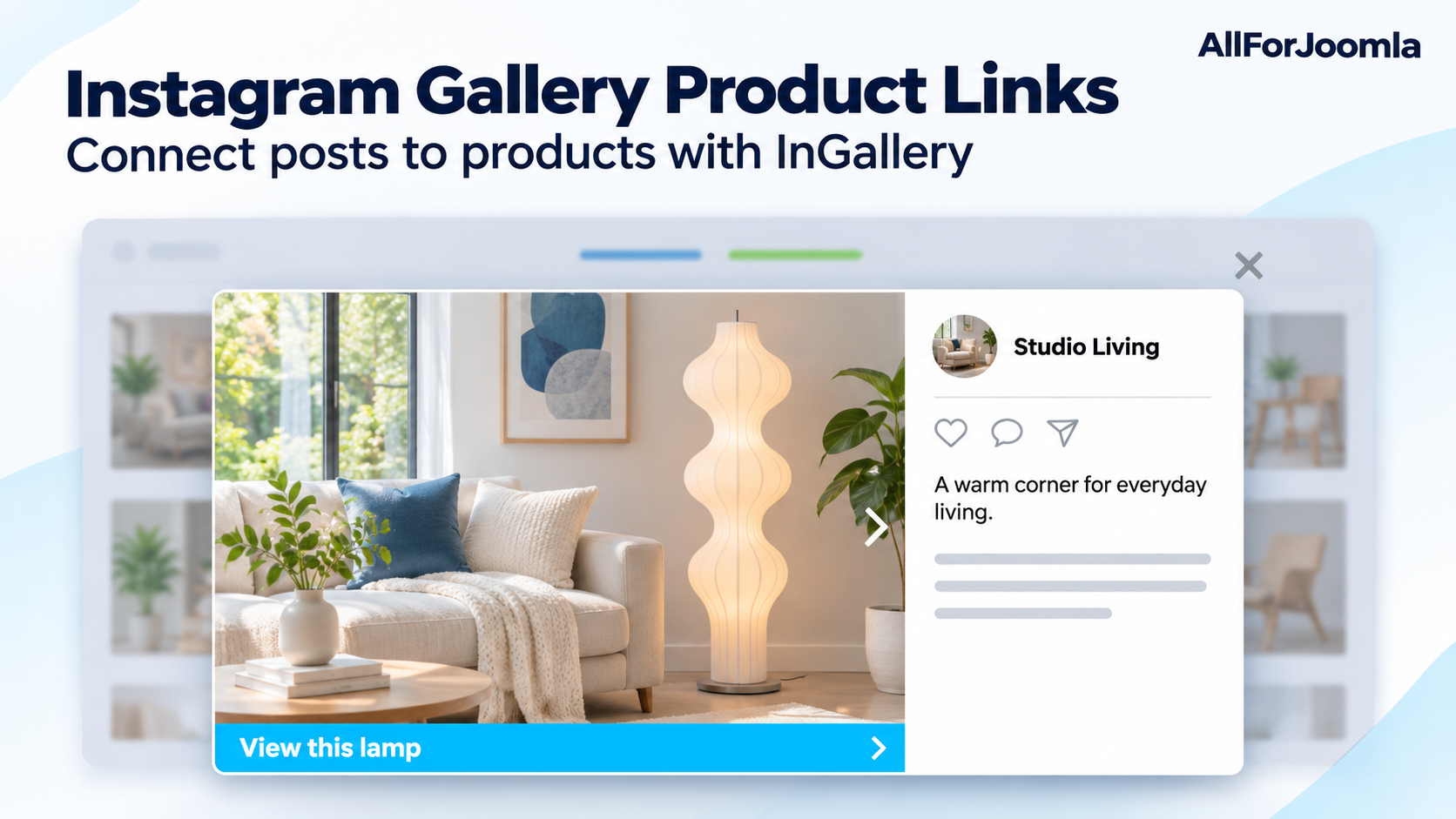
The button appears over the post media inside InGallery's popup. A visitor opens a photo in your website gallery and then clicks the button to view the product, explore a service or take another next step.
🎯 Connect the photo with the product it shows
Imagine a furniture shop that publishes photographs of finished interiors on Instagram and displays those posts on its Joomla website. A visitor opens a living-room photo because they like the lamp beside the sofa.
A button labelled View this lamp can take them to that lamp's product page, where they can check its dimensions, available finishes and price. They do not need to remember its appearance and search the entire catalogue.
The same idea works for a business that makes kitchens to order. A photograph of a completed kitchen could lead to a detailed project page, or a service page with an enquiry form. Choose the destination according to what the photograph helps the visitor understand.
This creates a shoppable Instagram gallery on your website through links to your product pages. Checkout happens at the destination you choose. The CTA is part of the gallery on your Joomla site; it does not edit the original Instagram post.
⚙️ Add a CTA button in InGallery
Start with InGallery installed and activated, and a gallery containing the post you want to link. If you need the initial setup, follow how to add an Instagram feed to Joomla with InGallery.
1. Open your gallery and enable popup viewing
Go to Components > InGallery and edit the gallery. In the Display settings, configure posts to open in the popup.
2. Add a call-to-action rule
In Call to Action Buttons, add a CTA and complete these fields:
- Post URL: the Instagram post receiving the button.
- Button URL: the destination page.
- Button Label: the text visitors see.
- Button Position: its placement on the post media.
For the furniture example, use the interior photograph's Instagram URL, the lamp's product-page URL and the label View this lamp.
3. Save and display the gallery
Save the gallery. Copy its shortcode from the galleries list into a Joomla article or Custom HTML module. For example:
[ingallery id="1"]Use the ID assigned to your own gallery. See the InGallery documentation for installation, activation and display options.
4. Check the complete visitor journey
Open the published page, select the photograph and click its button. Confirm that the correct product opens. Repeat this on a phone, checking that the label is readable and the button is comfortable to tap.
Check the destination too: a discontinued item, missing photograph or unavailable booking form can interrupt the journey even when the gallery link works correctly.
🛍️ Choose a destination that matches each post
InGallery lets different posts have different CTA labels and URLs. Use that flexibility to make each link specific to the content being viewed.
| Instagram content | Example button | Destination |
|---|---|---|
| A lamp in a furnished room | View this lamp | The corresponding product page |
| A completed custom kitchen | Explore this kitchen | A project page with materials, details and an enquiry option |
| A demonstration of a service | Book this service | The relevant service or booking page |
| A photograph from a portfolio | View the full project | The complete case study or portfolio entry |
For a photograph containing several products, a collection page featuring those items may be more useful than a link to one unrelated product. A label such as Shop this room should lead to a page that actually helps visitors find the room's contents.
✍️ Write button labels that set clear expectations
A useful CTA tells the visitor what they will find after clicking. Prefer specific wording such as View this lamp or Explore this project to a vague Click here.
Match the wording to the destination. Use Request a quote when the link opens an enquiry page, and View product details when it opens an informational product page. Keep the label short enough to read comfortably over the photograph.
Choose a position that leaves the main subject visible. If you include a price or limited offer in the label, plan to update it when the offer changes. A descriptive label is often easier to maintain.
❓ Questions about Instagram gallery product links
Can I use this for services and portfolios?
Yes. The destination can be a service page, booking form, portfolio project or another relevant URL. A full online shop is not necessary to give visitors a useful next step.
Are products matched to posts automatically?
In this setup, you choose the post and destination URL for each CTA rule. Plan the connection between the photograph and its destination before adding the button.
Why is my CTA button missing?
Check that the rule's Post URL matches the intended post, the Button URL and Button Label are filled in, and popup viewing is enabled. Open the post to check the button on its media.
Start with one useful product link
Choose a photograph that clearly shows a product or completed project. Give it a specific button, connect it to a helpful destination and test the experience on your website.
To see the interaction before configuring your own gallery, open the InGallery live demo and try the CTA examples in the Albums section. You can then apply the same idea to the products and services your visitors already see in your Instagram content.