Contents
- Installation
- License Activation
- Create a Widget
- Connect to Facebook
- Configure Posts, Photos & Videos
- Responsive Layout
- Photo & Video Popup
- GDPR-Friendly Media Loading
- Shortcode
- Translation
📦 Installation
To install Facebook Feed Pro, log in to your Joomla Administrator and go to
System > Install > Extensions. Upload and install the
facebookfeedpro-package.zip package.
Facebook Feed Pro also uses the System - Facebook Feed Pro plugin. Current Joomla versions normally enable this plugin automatically during installation. However, some older Joomla versions may leave it disabled.
After installation, go to System > Manage > Plugins, find System - Facebook Feed Pro and make sure the plugin is enabled.
🔑 License Activation
Facebook Feed Pro requires a valid license key to work. Each purchased license has its own License Key, which you can find in your AllForJoomla account.
- Open Components > Facebook Feed Pro > Options.
- Open your AllForJoomla Orders page and find your Facebook Feed Pro license.
- Copy its License Key.
- Paste the key into the Premium License key field.
- Save the settings.
🧩 Create a Widget
Widget creation and management is performed in Components > Facebook Feed Pro.
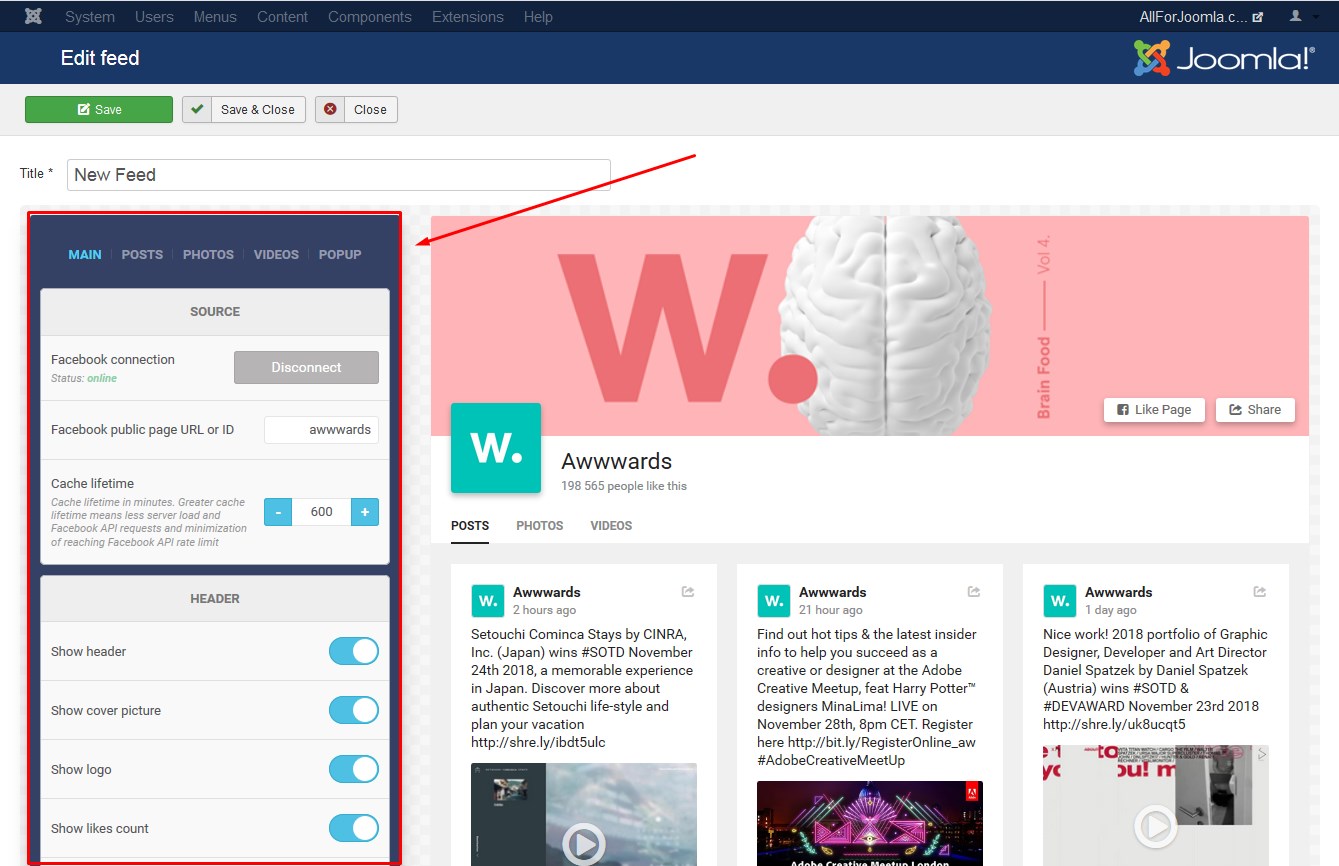
Create a new widget or open an existing one to use the integrated visual builder. The builder allows you to configure the widget and see an instant preview while changing its settings.
Connect to Facebook
Facebook Feed Pro supports two ways to connect your widgets to Facebook: direct Facebook connection and Token Manager.
You can choose which connection method is available in Components > Facebook Feed Pro > Options using the Facebook Connection mode setting:
- Facebook — connect to Facebook directly while configuring a widget.
- Token Manager — use Facebook Page access managed centrally through Token Manager.
- Both — make both connection methods available.
Direct Facebook Connection
If Facebook or Both is selected as the connection mode, you can connect to Facebook directly while configuring the widget.
- Click the Connect to Facebook button.
- Complete the Facebook authorization process in the popup window.
- Choose the Facebook Pages you want to grant access to.
- After the connection is complete, select the Facebook Page you want to display in the widget.
Token Manager
If Token Manager or Both is selected, you can use Facebook Page access managed centrally through Token Manager instead of authorizing Facebook separately for each widget.
This is especially useful when you have multiple Facebook Feed Pro widgets, because access to the same Facebook Page can be managed centrally and reused across different widgets.
Learn how to configure and use Token Manager .
Configure Posts, Photos & Videos
Facebook Feed Pro can display Facebook Page posts, photos, albums and videos. You can display the supported content types together in one widget or configure a widget for a specific type of content.
Facebook Posts
Use the Posts settings to enable or disable posts and configure how they are displayed. You can control the number of posts, items per page, columns, spacing and the information displayed with each post.
You can also include or exclude posts based on keywords in the post content or author information.
Facebook Photos & Albums
Use the Photos settings to create a Facebook photo and album gallery. You can configure the number of photos, pagination, columns and spacing, as well as how Facebook albums are displayed.
Albums can be included or excluded by name or ID. You can also control album ordering, hide empty albums and choose whether photos that are not assigned to an album should be displayed.
Facebook Videos
Use the Videos settings to create a Facebook video gallery. Configure the number of videos, pagination, columns and spacing, and choose whether information such as video titles, descriptions, likes and comments should be displayed.
Responsive Layout
Posts, photos and videos have their own layout settings. You can configure columns, items per page and spacing independently for each content type.
Facebook Feed Pro also supports custom responsive breakpoints. Use them to define how many columns should be displayed at different screen widths.
Photo & Video Popup
Facebook photos and videos can be opened in the built-in media popup. Use the Popup settings to control the information displayed there, including available author, likes, comments and sharing controls.
GDPR-Friendly Media Loading
Facebook Feed Pro supports GDPR-Friendly Media Loading, allowing Facebook media to be downloaded and served from your own Joomla website instead of being loaded directly from third-party media servers in visitors' browsers.
To enable it, go to Components > Facebook Feed Pro > Options > Advanced, find Media Display Mode and select GDPR-Friendly Media Loading.
This helps reduce direct connections between your website visitors and third-party media servers. Learn more about GDPR-Friendly Media Loading .
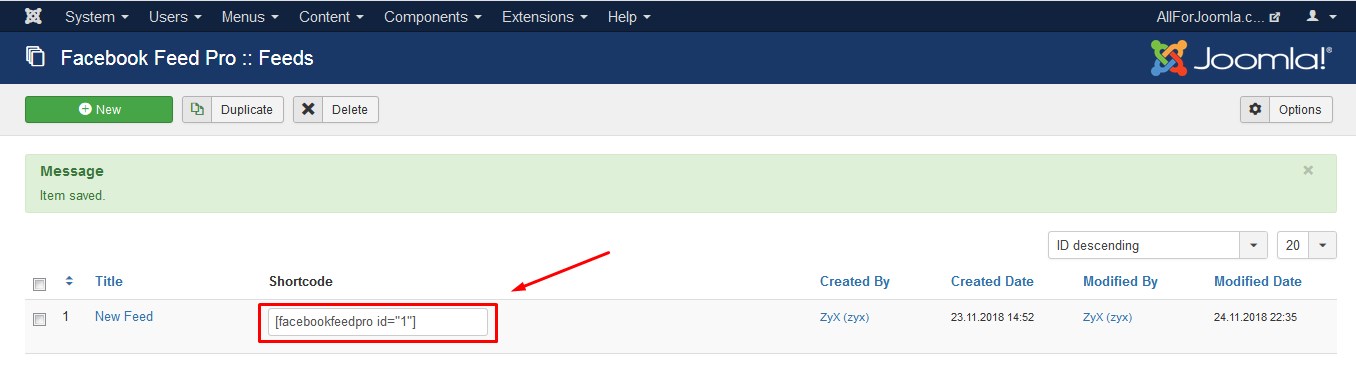
When you finish configuring the widget, click Save. The widget will appear in the widgets list together with its shortcode.
🔗 Shortcode
Go to Components > Facebook Feed Pro to see the list of your existing widgets. Each widget has its own shortcode in the Shortcode column.
Copy the shortcode of the widget you want to display and paste it where you want the Facebook content to appear.
You can place the shortcode in:
- a Joomla article
- a Custom HTML module
- a Joomla template file
🌐 Translation
Facebook Feed Pro can be translated using standard Joomla language files. You can also change individual words or phrases using Joomla Language Overrides.
Language Overrides can also be used to change the date format by overriding
the COM_FACEBOOKFEEDPRO_DATE_FORMAT constant using a
PHP date format.
For example, d/m/Y displays the date as day/month/year.
For information about creating language overrides in Joomla, see the Joomla Language Overrides documentation.
The language constants used in the widget include:
- COM_FACEBOOKFEEDPRO_DATE_FORMAT
- COM_FACEBOOKFEEDPRO_POSTS
- COM_FACEBOOKFEEDPRO_PHOTOS
- COM_FACEBOOKFEEDPRO_VIDEOS
- COM_FACEBOOKFEEDPRO_LIKE_PAGE
- COM_FACEBOOKFEEDPRO_SHARE
- COM_FACEBOOKFEEDPRO_PEOPLE_LIKE_THIS
- COM_FACEBOOKFEEDPRO_LIKES
- COM_FACEBOOKFEEDPRO_COMMENTS
- COM_FACEBOOKFEEDPRO_SHARES
- COM_FACEBOOKFEEDPRO_VIEW_ON_FB
- COM_FACEBOOKFEEDPRO_LOAD_MORE
- COM_FACEBOOKFEEDPRO_ALBUMS
- COM_FACEBOOKFEEDPRO_SHOW_MORE
- COM_FACEBOOKFEEDPRO_SHOW_LESS
- COM_FACEBOOKFEEDPRO_AJAX_ERROR
- COM_FACEBOOKFEEDPRO_AGO
- COM_FACEBOOKFEEDPRO_YEAR
- COM_FACEBOOKFEEDPRO_MONTH
- COM_FACEBOOKFEEDPRO_WEEK
- COM_FACEBOOKFEEDPRO_DAY
- COM_FACEBOOKFEEDPRO_HOUR
- COM_FACEBOOKFEEDPRO_MINUTE
- COM_FACEBOOKFEEDPRO_SECOND
- COM_FACEBOOKFEEDPRO_YEARS
- COM_FACEBOOKFEEDPRO_MONTHS
- COM_FACEBOOKFEEDPRO_WEEKS
- COM_FACEBOOKFEEDPRO_DAYS
- COM_FACEBOOKFEEDPRO_HOURS
- COM_FACEBOOKFEEDPRO_MINUTES
- COM_FACEBOOKFEEDPRO_SECONDS